
Quick start: task assignment process
Step-by-step setup of the task assignment process in Cabinee (Task Tracker)
User Story (Context)
As a manager at the Drimis company,
I want to give assignments to employees and control their completion,
so that tasks are completed, deadlines are met, and company goals are achieved.
Solution: Model a business process for task assignments and create a space (Workflow) for it with supporting catalogs.
Prerequisites
- Space (Workflow) owner permissions
- A configured mail channel for sending notifications
- A
.bpmnprocess model Task Tracker
task-tracker.bpmn (download the file)
Step 1. Create a space (Workflow)
- Go to Spaces → All Spaces
- Click Create
- Specify:
- Name:
Work tasks - Code: generated automatically, or enter it manually
- Active: enabled
- Name:
- Save the changes
Details: Space (Workflow)
Task Tracker process diagram
The BPMN model of the assignment process used in this setup is shown below:
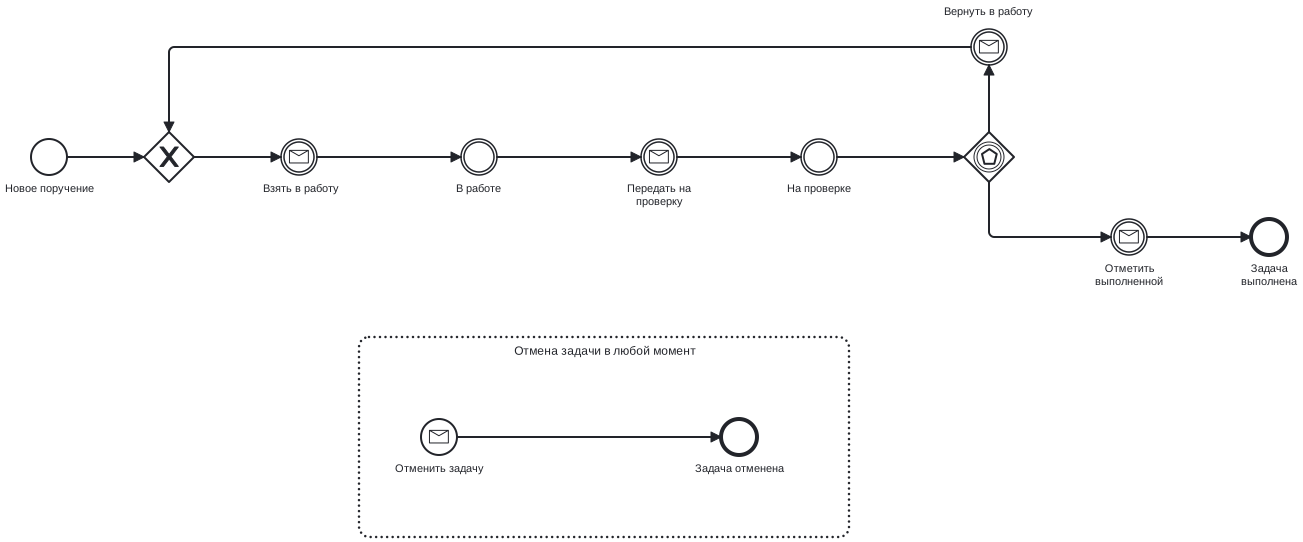
Process stages:
- The manager creates a ticket (assignment) and assigns an executor (
New assignment) - The executor takes the assignment into work (
In progress) - After completing the work, the executor submits the result for review (
Under review) - The manager reviews the result and:
- returns the assignment to work — if rework is needed,
- completes the assignment (
Task completed)
- The assignment can be cancelled at any time.
Step 2. Import and publish the BPMN model
- Open the created space (Workflow)
Work tasks - Go to the ⚙️ Artifacts (Definitions) tab
- Click Create, select type
BPMN, and import thetask-tracker.bpmnfile - Rename the model from
New BPMNtoTask Tracker - Click Save
The model is saved to the internal Cabinee repository. Deployment to the orchestration cluster is performed separately — Camunda Modeler, zbctl, or a CI step; see Deploying models to Camunda 8
:
zbctl deploy resource task-tracker.bpmn --address <camunda-host>:26500
Until the model is deployed to the cluster, its key will not appear in the list on the next step.
Step 3. Bind BPMN to the space (Workflow)
- Make sure the BPMN model is displayed in Artifacts
- Open the settings of the
Work tasksspace (Workflow) (⚙️ → Edit) - Set the
Process keyfield to:taskTracker
(the key must match the processidin the BPMN model) - Save the changes
Step 4. Configure ticket statuses (Ticket States)
- In the space (Workflow) settings, open the Ticket statuses tab
- Click Create and add statuses (by
activityIdfrom BPMN):New assignmentIn progressUnder reviewCancel taskTask cancelledTask completed(mark as final)
- Configure the order and icons
- Make sure at least one status is marked as final
Details: Ticket statuses
Step 5. Assign permissions (Permissions)
- In the space (Workflow) settings, go to the Permissions tab
- Click + add group or + add user
- Add, for example, the
Teamgroup that participates in the process
Details: Permissions
Step 6. Testing
- Create a ticket, for example:
Prepare a presentation for the meeting - Make sure the process starts
- Check status changes and the available actions shown
- Complete the task and verify that the ticket close date is set