
Quick start: Service Desk
Step-by-step setup of the Service Desk process in Cabinee
User Story (Context)
As a customer of internal or external support,
I want to create requests and receive responses through a convenient channel,
so that my problem is solved quickly, transparently, and according to the service level.
Solution: Model a support process , configure a space (Workflow) , connect mail channels and the Service catalog.
Prerequisites
- Space (Workflow) owner permissions
- A configured inbound and outbound mail channel
- A
.bpmnprocess model Service Desk
service-desk.bpmn (download the file)
Step 1. Create a space (Workflow)
- Go to Spaces -> All Spaces
- Click Create
- Specify:
- Name:
Service Desk - Code: generated automatically, or enter it manually
- Active: enabled
- Name:
- Save the changes
Details: Space (Workflow)
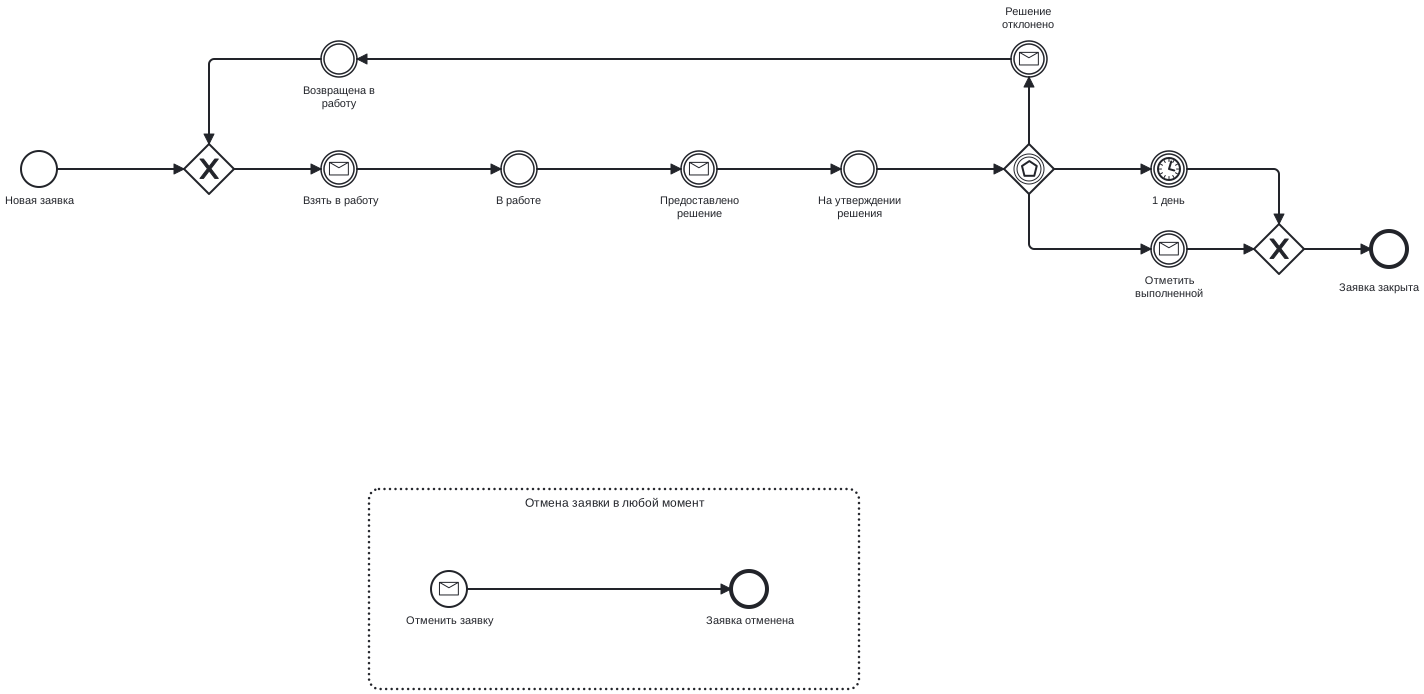
Service Desk process diagram
The BPMN model of the process used in this setup is shown below:
Step 2. Import and publish the BPMN model
- Open the created space (Workflow)
Service Desk - Go to the ⚙️ Artifacts (Definitions) tab
- Click Create, select type
BPMN, and import theservice-desk.bpmnfile - Name the model
Service Desk - Click Save
The model is saved to the internal Cabinee repository. Deployment to the orchestration cluster is performed separately — Camunda Modeler, zbctl, or a CI step; see Deploying models to Camunda 8
:
zbctl deploy resource service-desk.bpmn --address <camunda-host>:26500
Until the model is deployed to the cluster, its key will not appear in the list on the next step.
Step 3. Bind BPMN to the space (Workflow)
- Open the settings of the
Service Deskspace (Workflow) (⚙️ -> Edit) - Set the
Process keyfield to:serviceDesk
(the key must match the processidin the BPMN model) - Save the changes
Step 4. Configure ticket statuses (Ticket States)
- In the space (Workflow) settings, open the Ticket statuses tab
- Create statuses (by
activityIdfrom BPMN):New ticketIn progressSolution pending approvalReturned to workCancel ticketTicket cancelledTicket closed(final status)
- Set the order and icons
- Make sure at least one status is marked as final
Details: Ticket statuses
Step 5. Configure the Service catalog
- Go to Service catalog in the admin menu
- Click Create
- In the dialog that opens, fill in the data:
Name: service name, for example Callisto SupportCriticality: criticality level (for example, VERY_HIGH)Active: enable the checkboxOwner: service ownerParent: if needed, specify the parent catalog, or leave empty
Details: Service catalog
Step 6. Configure mail channels
- Go to Mail -> Channels
- Create:
- An inbound channel (imap/pop3)
- An outbound channel (smtp)
- Link them to the
Service Deskspace (Workflow) - Check the connection and authorization settings
Details: Mail integration
Step 7. Configure mail rules (Mail Rules)
- Go to admin -> Mail rules
- Create a rule so that messages from a specified sender are assigned the required service. For example:
RuleType: FROMRuleValue: sender e-mail, for examplekseniya.charkina@reunico.comor@reunico.comOutputType: Service_EntityOutputValue: Callisto SupportPriority: 99
Step 8. Working with tickets and correspondence
- Tickets can be created manually or automatically — when a message arrives at the corporate mailbox linked to Service Desk (for example:
support@yourdomain.com) - The operator monitors tickets, takes them into work, and starts communication on the Correspondence tab:
- For example, a customer writes to mail: “the prod stand is down, please take a look”
- The system creates a ticket, and the operator sends a confirmation: “We have received your message, thank you for contacting us”
- After analyzing and resolving the issue, the operator replies to the customer in the same thread, for example: “The issue has been resolved, the stand is working correctly”
- After the user confirms the result, the ticket is moved to the final status Completed
💡 Make sure that sent and incoming messages are shown on the “Correspondence” tab and that all messages are part of the thread by the
[Ticket#XXX]subject
Done!
You have configured Service Desk with communication, mail, and the Service catalog.