
Notifications
Overview
Notifications let users receive information about events that occur in tickets and processes.
Notification settings are configured at the space (Workflow) level and apply to all users associated with that space.
Configuration is performed by an administrator.
Notifications are enabled or disabled centrally either for all space (Workflow) participants, or for none of them.
Where notifications are located
- Notification settings are available through the gear icon on the space (Workflow) card.
- After rules are saved and activated, notifications are sent to users when tickets associated with this space (Workflow) change.
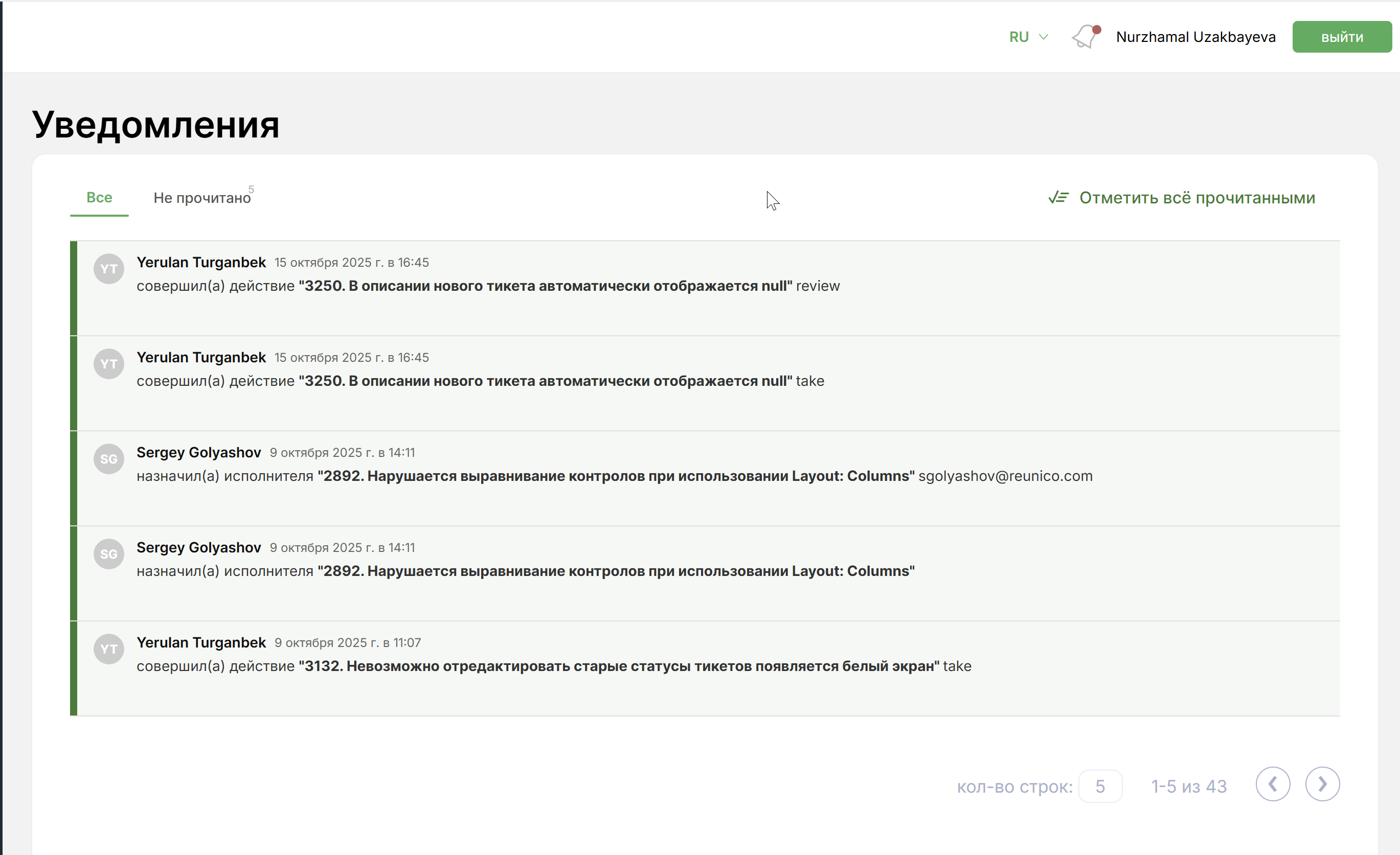
- In the upper-right corner of the Cabinee interface there is a bell icon; clicking it opens the user’s notification list.
- If the user has new notifications, a dot indicator appears on the icon.
When all notifications have been read, the bell is shown without a dot.
Creating and configuring notifications
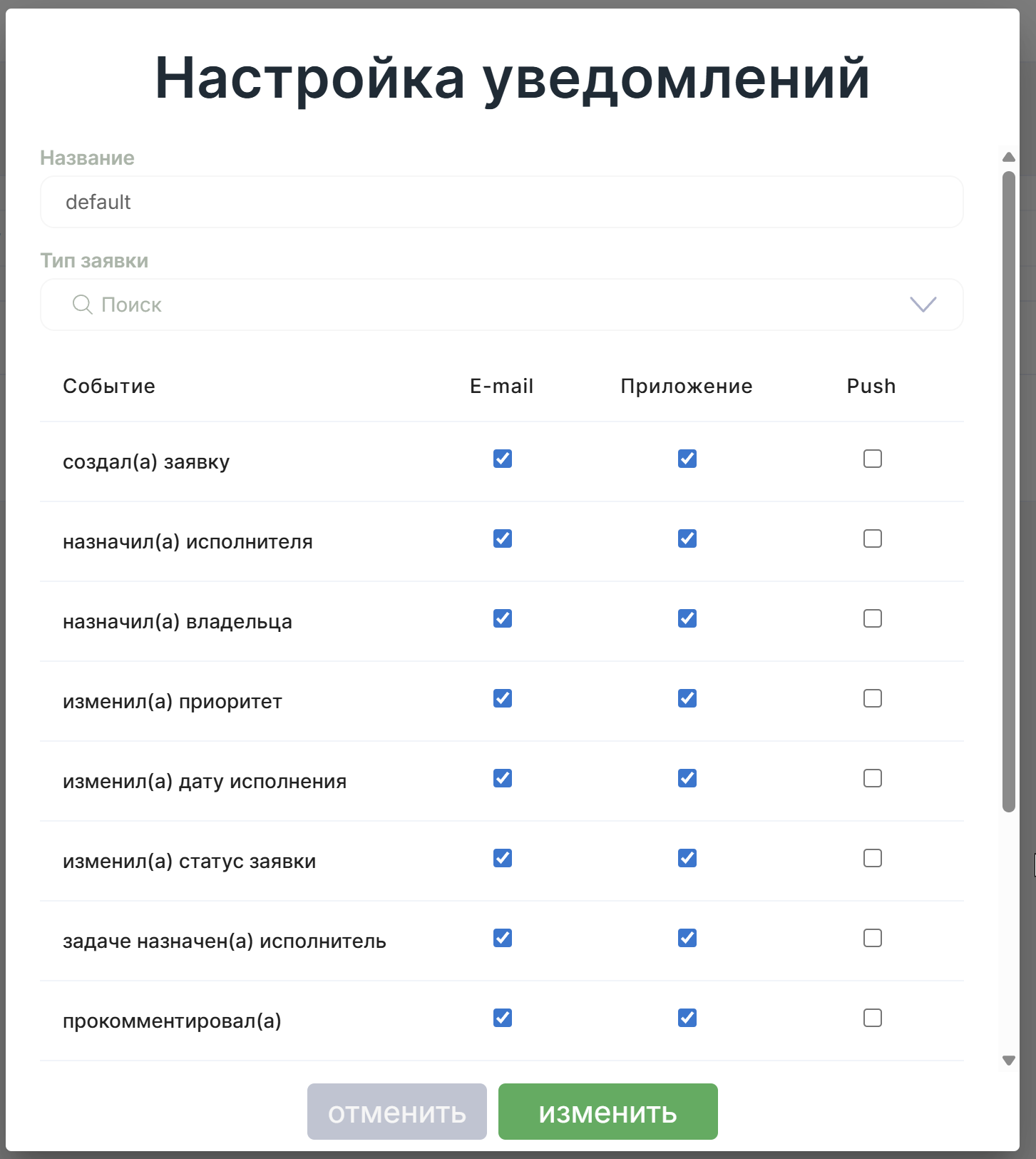
Clicking the Create button opens the Notification settings window.
Form fields:
- Name is a required field.
- Ticket Type is an optional field. If a type is selected, notifications are sent only for tickets of that type.
- Events is the list of actions that cause the system to send notifications.
Example events:
- created a ticket;
- assigned an assignee;
- changed the priority;
- changed the ticket status;
- commented;
- created a task;
- completed a ticket, and others.
Important: a notification is not sent to the initiator of the event.
Notification channels
The settings table has three columns:
| Channel | Description | Implementation |
|---|---|---|
| Sending notifications by email | Implemented | |
| Application | Displaying notifications inside Cabinee (web interface) | Implemented |
| Push | Sending push notifications to the mobile app | Not implemented |
An administrator can enable one or more delivery methods for each event.
Working with user notifications
After receiving notifications, a user can:
- View all notifications or only unread ones;
- Mark a single notification as read by clicking the checkmark icon on the right;
- Click again to mark the notification as unread;
- Use the Mark all as read button.
Usage example
- The administrator opens the required space (Workflow).
- Clicks Gear → Notifications → Create.
- Fills in the name and selects a ticket type if needed.
- Selects the required events and delivery channels.
- Saves the rule.
After that, all users participating in this space (Workflow) will receive notifications through the selected channels.