
Labels
Overview
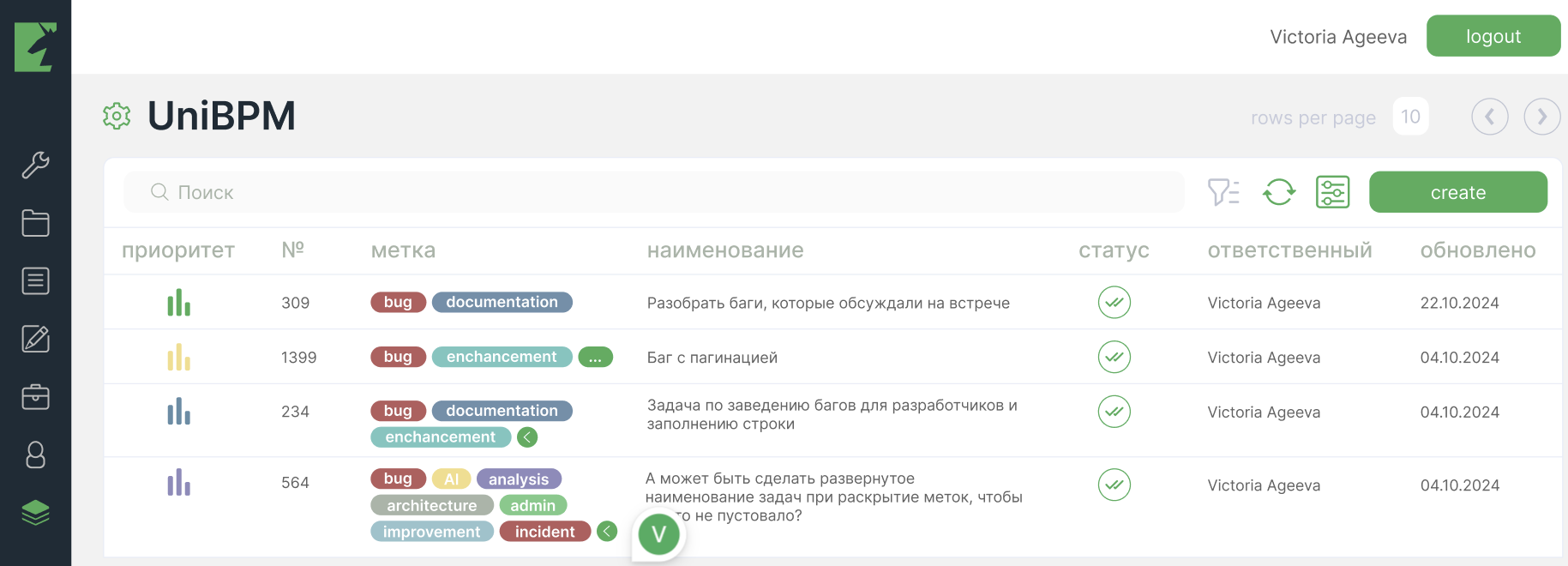
Labels are user-defined tags used to classify and filter tickets in Cabinee. Each label has a unique name, color, and description; the color helps visually distinguish ticket categories. A label can be assigned to one or more tickets.
Purpose
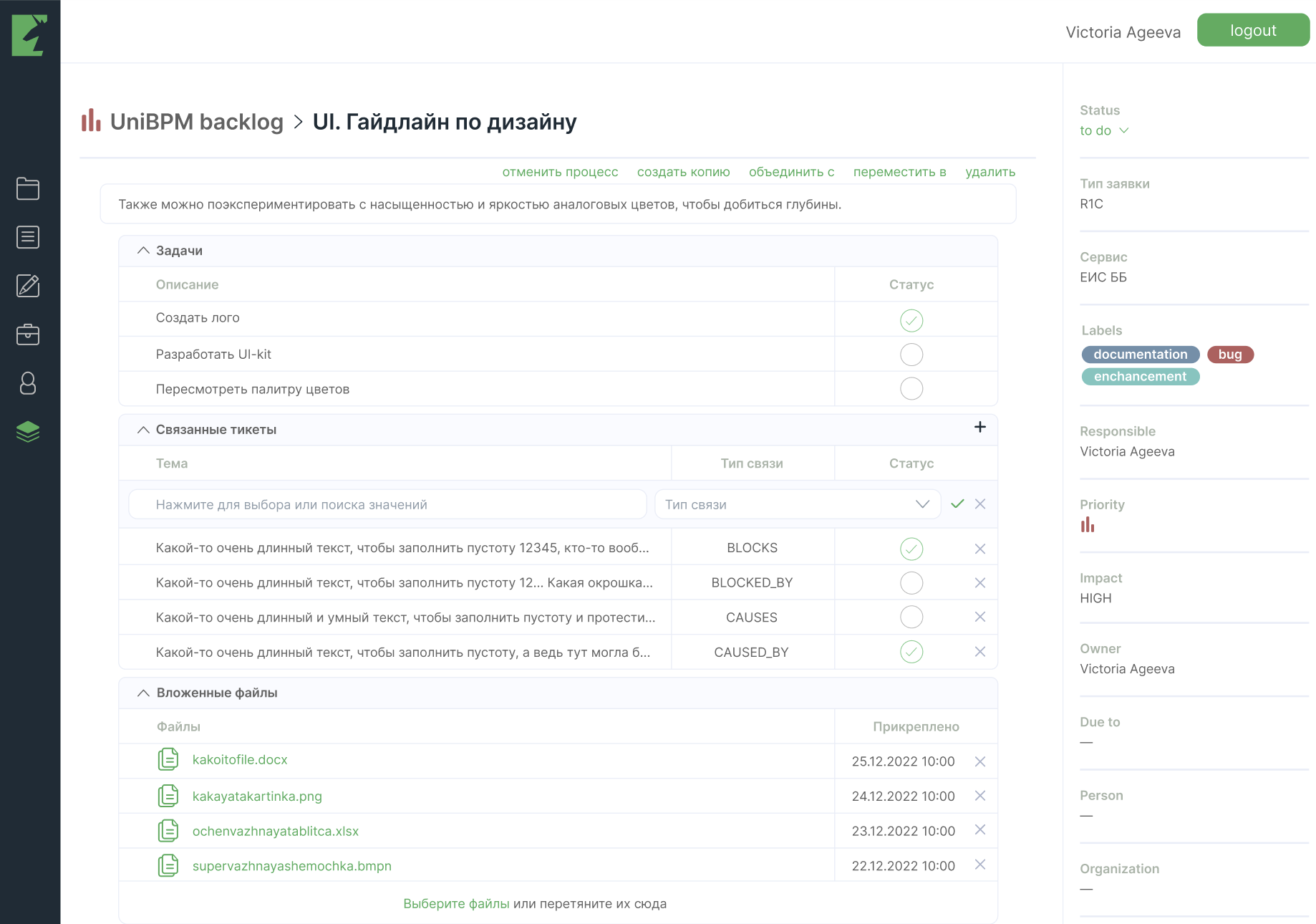
Labels are displayed:
- In the ticket table on the main page
- In the ticket card (on the right, in the Labels block)
Assignment or removal is done directly from the card — by clicking the desired item.
Access to management
Configuration and viewing are done through the gear item in the space (Workflow) interface. Then select the Labels menu.
List and editing
The interface displays a list of all created labels. For each of them the following is shown:
- Name
- Color
- Description
Next to each item the Edit and Delete actions are available.
Creation
A new record is added with the Create button on the right in the filter panel. In the modal window, fill in the fields:
- Name
- Color
- Description
Usage
Labels can be assigned to tickets. They are displayed in ticket details and other system views. Using these elements helps organize tasks and makes navigation easier.
Filtering
Labels participate in filtering:
- Clicking a tag in the ticket card removes it from that ticket.
- Searching and selecting a name in the Labels field adds the selected label.
- In custom filters you can set a condition by label so that only tickets with the selected label are displayed (filter examples:
label.equals=docsorlabel.in=bug,docs)
Configuring label display in the task list
A user can control the display of the Labels column through the custom table settings:
- In the upper-right corner of the table, click the column settings icon (before the Create button).
- In the window that appears:
- To show labels — drag the “Labels” field to the Displayed section.
- To hide labels — drag it back to the Available section.
- Click “Apply” to save the changes.