
Boards in Cabinee
Overview
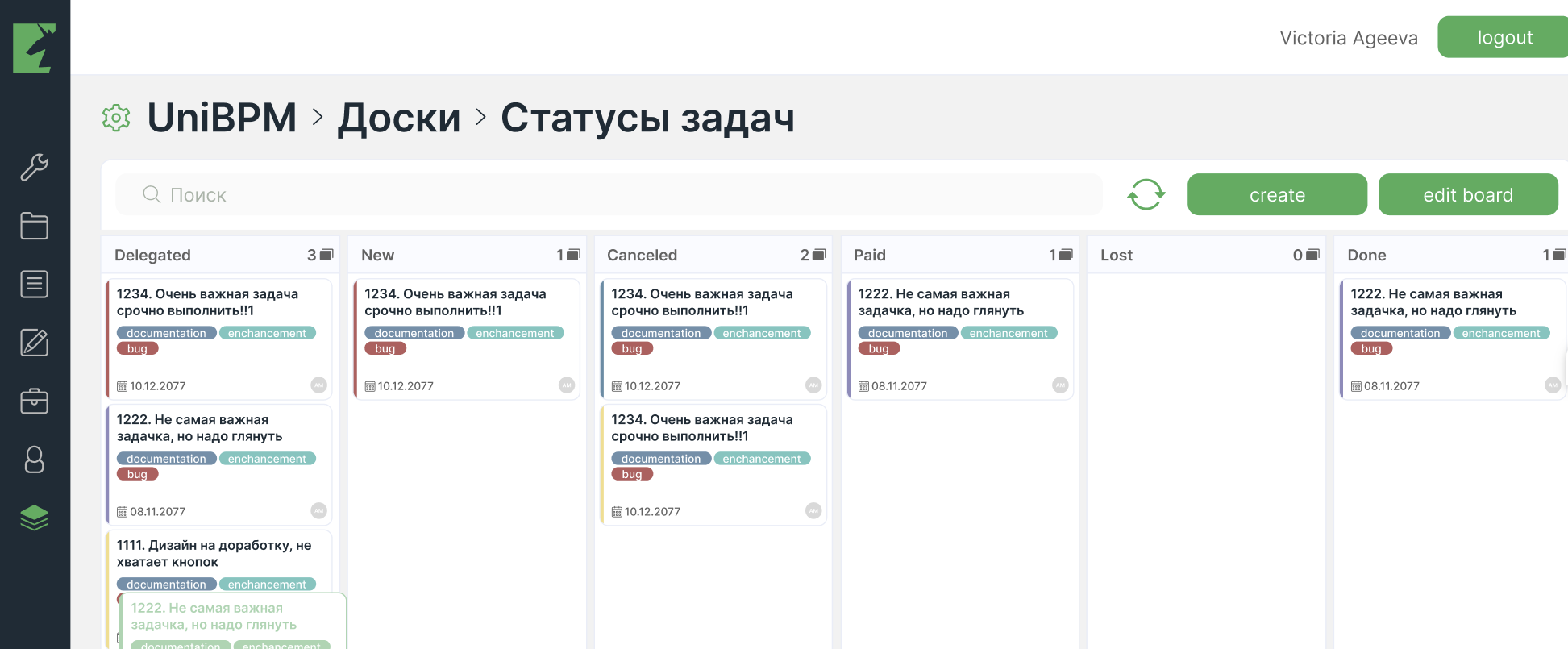
A board is a visual representation of tickets within a specific space (Workflow) . Each board is a set of columns that filter tickets by given conditions.
A single space (Workflow) can have several boards that differ by criteria: statuses (New, In progress, Testing), assignees (Andrey, Vladimir, Victoria), and others.
Opening boards
Boards are available in two ways:
- Through the Gear item in the space (Workflow) interface.
- Through the Boards button on the filter bar of the main space (Workflow) page.
Board list
When you open the board management section, the list of all boards associated with the current space (Workflow) is displayed. Adding, editing, and deleting boards is done on the board list screen in the system interface.
Creating a board
To create a new board, it is enough to specify its name. After creation, the user can open the board.
Configuring board columns
A board consists of several columns. Each column describes a filtered group of tickets by a condition.
When you click Set board / Edit board, a modal window opens where you can configure several columns at once. Each column is shown with the heading “
- Name
- Ordinal number
- Filter conditions (Filter value):
- field (state, responsible, etc.)
- operator (equals, contains)
- value (“New”, “Testing”, Employees)
Columns are added through the + Column link. Column order determines their sequence on the board.
Filter configuration hint
To display all tasks with status new in a column, select:
- Parameter —
state, - Comparison operator —
specified, - Leave the value field empty (do not select the checkbox).
Board display
When the columns are created, the board fully displays tasks according to the conditions. The board supports scrolling:
- Horizontal for columns
- Vertical for the task list in a column